
Build knowledge from your documents.
Turn the documents you already have into structured knowledge your assistant can answer from. You always review it before it goes live.
What it does #
The Knowledge Builder reads your documents, finds the themes, and drafts structured knowledge. Nothing goes live until you've reviewed and approved it, so you stay in control of what your assistant knows.
Supported files #
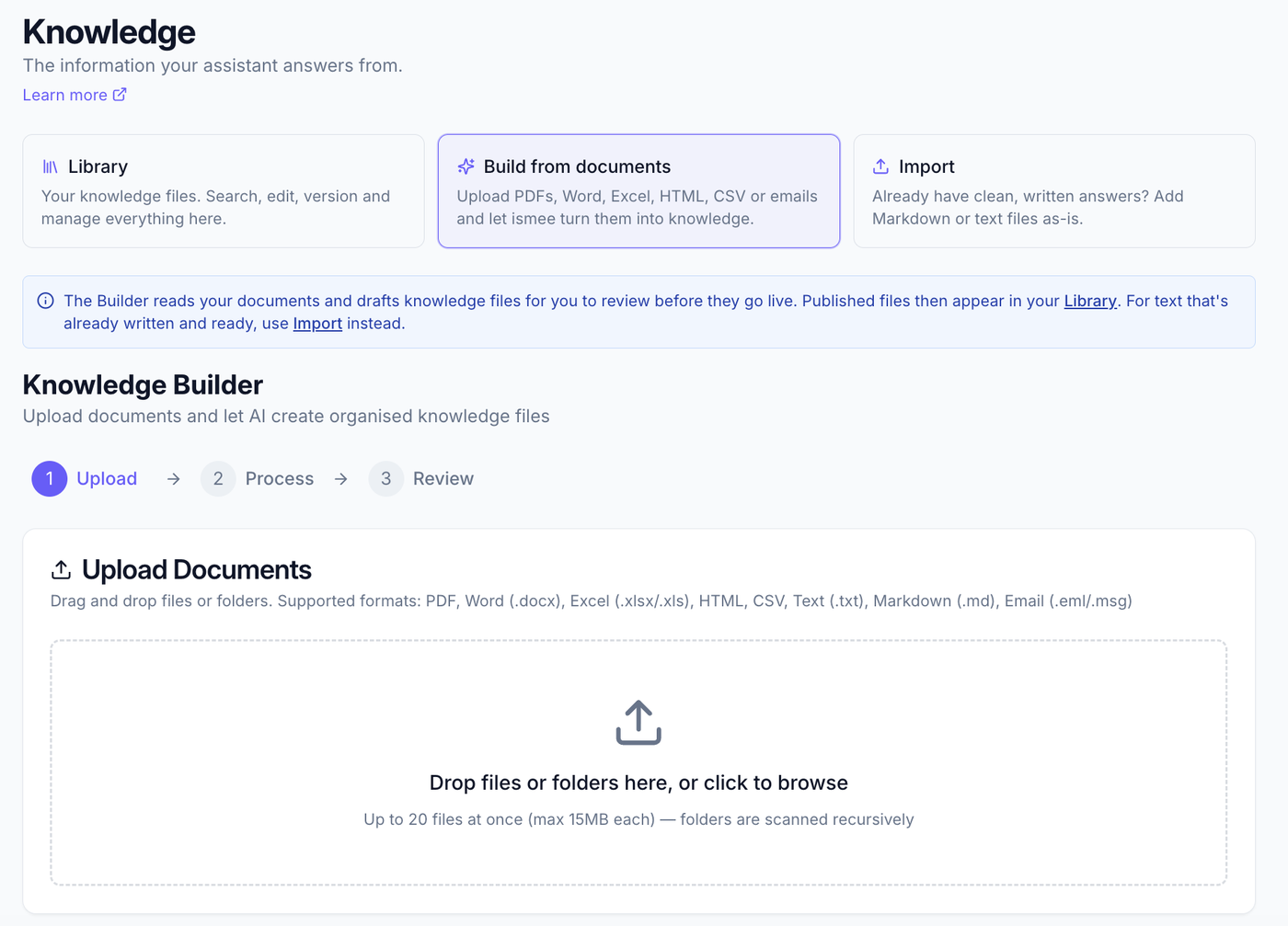
Drag in up to 20 files at once (max 15 MB each), or drop a whole folder: folders are scanned recursively and unsupported files are skipped.
Already have a ready-made answer written in Markdown or plain text? Add it as-is with Import instead.
Build in three steps #
- Upload. Go to Knowledge admin → Add knowledge → Build from documents. Drag your files in (or click to browse) and choose Process files.
- Process. ismee analyses your documents, identifying themes, picking up the writing style, and pulling out the important information. This takes a few minutes.
- Review. Check each draft, edit anything that needs it, then Approve to add it, or Reject what isn't right.
Getting emails in #
ismee accepts email files directly, .eml and .msg, so you can drag them straight into Build from documents. If you'd rather, you can also save an email as a PDF first. Here's how to get them out of the common apps:
- Outlook (desktop): open the email → File → Save As → choose Outlook Message Format (.msg) or HTML. Or File → Print → Save as PDF.
- Outlook Online (OWA): open the email → ••• (More actions) → Print → Save as PDF.
- Gmail: open the email → ⋮ menu → Show original → Download original for a .eml; or ⋮ → Print → Save as PDF.
Smart merge #
When new content overlaps knowledge you already have, ismee offers a choice:
- Merge: combine the new content with the existing file.
- Replace: overwrite the existing content with the new version.
- Keep separate: add it as a new file.
The Library #
Approved knowledge lives in the Library: the default view under Knowledge. From there you can search, edit, version and manage your files any time.
Tips #
- Quality in, quality out: start with well-structured source documents.
- Review thoroughly: always check the drafts for accuracy before approving.
- Group related documents together in a batch.
- Re-process a document when it changes so your knowledge stays current.
What ismee keeps #
ismee reads your document to draft knowledge, then keeps only the knowledge you approve. It does not store the original file. Each finished knowledge file carries an admin-only note of where it came from, the source name, type and date, visible in the Library, so you can always see what a piece of knowledge was built from.
Publishing it to your team #
Approved knowledge does two jobs. It answers questions in the chat, and it can also be published for your team to read in Documents. In Knowledge admin → Library you choose, file by file, whether something appears there. Anything you keep hidden still answers questions in chat.
What to read next #
- Importing knowledge, add ready-made Markdown or text as-is.
- Knowledge insights, see coverage, gaps and what's used.
- Getting started, the full setup path.